

Before you continue, make sure to sign in. Go to the settings page by clicking “Settings” in the navigation.
Fig-1
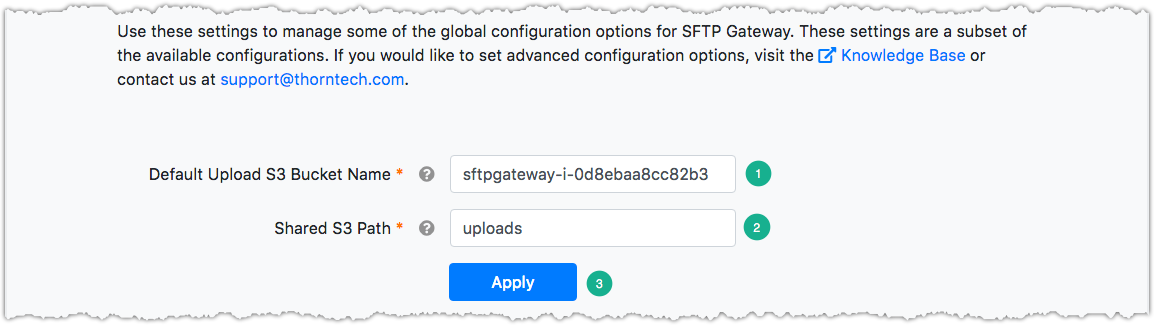
These settings are used to manage some of the global configuration options for SFTP Gateway (Fig-1).
If user customization settings are left blank, these settings will be used.
Default Upload S3 Bucket Name - default S3 destination used by SFTP Gateway.
Shared S3 Path - shared folder created in the root of the default bucket (learn more).
Click “Apply” to save the changes made to the form.