

Before you continue, make sure to sign in.
Once you login, you will see a list of all users (which will initially be empty). In the upper right corner click on the create user button (Fig-1).
Fig-1

Configure New User
Fig-2
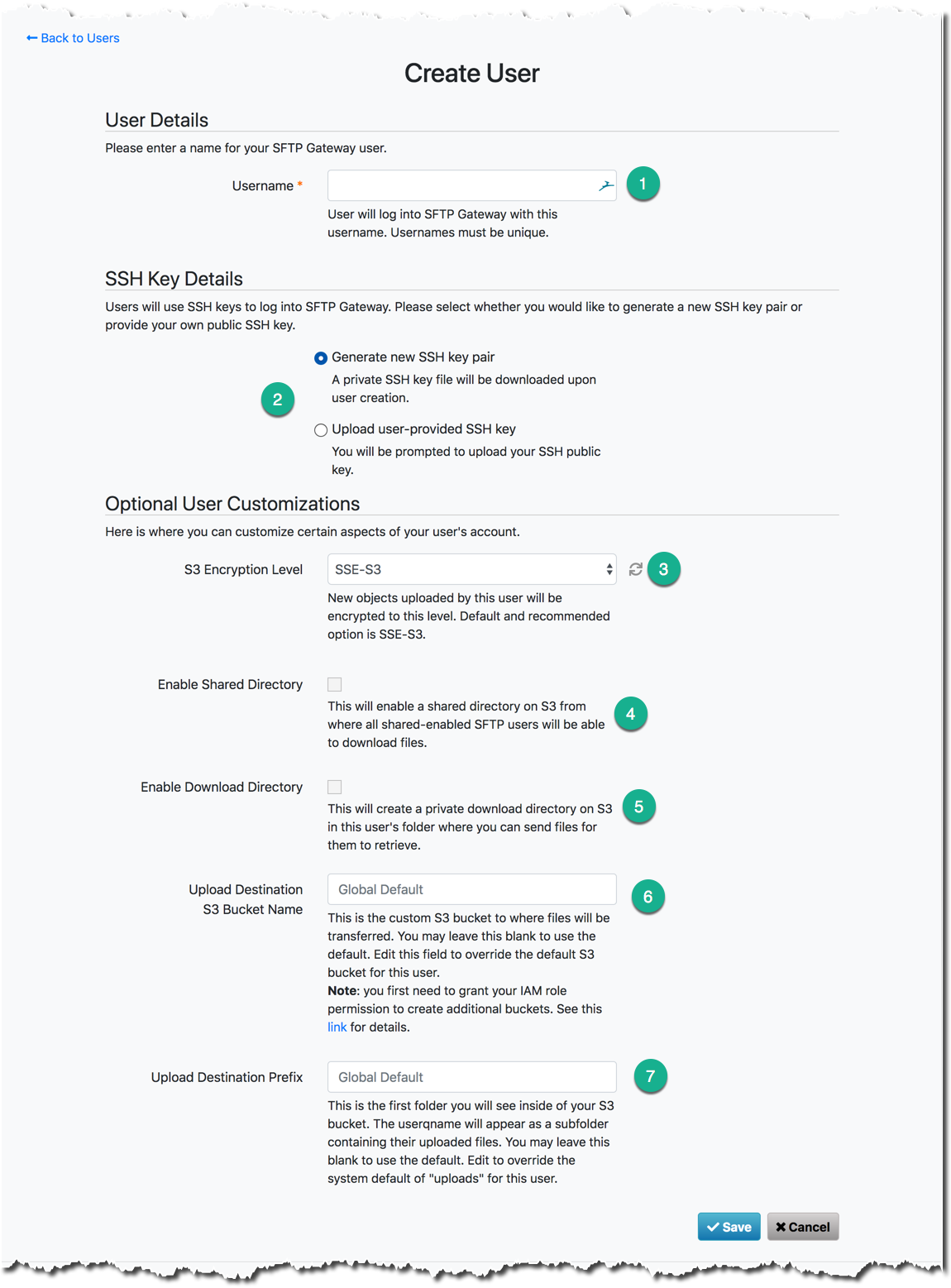
Refer to Fig-2:
Username is required and must be unique.
SSH Key Details is used to login to SFTP Gateway instead of a password.
Select one of these options for the userThe “Generate new SSH keys pair” option will generate a new key pair, write the public key to the
authorized_keysfile, and download the private key once the user is saved.Note: You will need to make the private key available to the user by email or any other secure way (learn more).
The “Upload user-provided SSH key” option will display a browse button that will allow you to navigate to a public key file to be uploaded and written to the user’s
authorized_keysfile.
S3 Encryption Level is used to encrypt object uploaded to S3 by the user.
Here are all your options:SSE-S3: Is used by default. There is no additional cost, performance impact, nor key management overhead. You basically get some security compliance with no drawbacks.
KMS: You use the AWS key-managed service for encryption. This is similar to SSE-S3, but requires some configuration on your part. If you are not seeing the KMS keys you created, click the refresh button next to the dropdown.
No server side encryption: This is a good option if your S3 bucket is open to the public. Otherwise, it’s best to take advantage of SSE-S3.
Enable Shared Directory is used to allow multiple SFTP Gateway users to access the same set of files. This will create a folder in the default S3 bucket (even if the user has a custom bucket configured) called
/shared.
Any files created in this S3 location will get synced down to this Linux filesystem location:/home/username/home/username/shared/Enable Download Directory is used to allow this user to see what is on S3 through the use of Download Folders.
By default, this will create a folder in your S3 bucket:/downloads. Any files created in this S3 location will get synced down to this Linux filesystem location:/home/username/home/username/downloads/Upload Destination S3 Bucket Name is used to specify the custom S3 bucket name for this user.
Note: This is an options field for per user customization and can be left blank to use the server defaults. This will create a new bucket or point to an existing bucket that you own.
Upload Destination Prefix is used to specify the S3 path to use for this user.
Note: This is an options field for per user customization and can be left blank to use the server defaults. The user’s files will be uploaded to
s3://my-custom-bucket/my/custom/path/.