

Here are instructions on how to log into the EC2 instance on both Linux/Mac and Windows.
Linux / Mac instructions
From your local machine, run the following commands:
<span class="n">LocalMac</span><span class="o">:</span><span class="n">mykeys</span> <span class="n">localuser$</span> <span class="n">chmod</span> <span class="mi">600</span> <span class="n">MyPrivateKey</span><span class="o">.</span><span class="na">pem</span>
<span class="n">LocalMac</span><span class="o">:</span><span class="n">mykeys</span> <span class="n">localuser$</span> <span class="n">ssh</span> <span class="o">-</span><span class="n">i</span> <span class="n">MyPrivateKey</span><span class="o">.</span><span class="na">pem</span> <span class="n">ec2</span><span class="o">-</span><span class="n">user</span><span class="err">@</span><span class="o"><</span><span class="kd">public</span> <span class="n">ip</span><span class="o">></span>
MyPrivateKey.pem: Locate the directory containing your private key, which you downloaded when creating your Key Pair.
chmod: SSH requires strict access on the private key.
ssh: You log into the server using the private key as the identity (
-i)
Windows instructions (PuTTY)
PuTTY does not natively support the PEM format that AWS uses, so you need to first convert your .PEM file to a PuTTY Private Key file (.PPK). To do this, you use the PuTTYgen utility packaged with PuTTY.
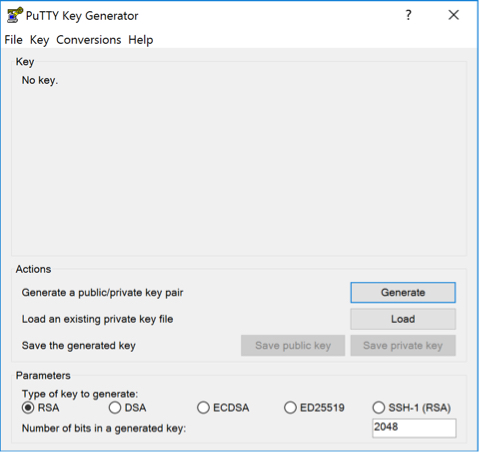
Open PuTTYgen and click Load to browse for your .PEM key. When browsing for the key, be sure to select All Files in the dropdown menu. Click Open when you have selected your key.
PuTTYgen will now convert your key to the proper filetype.
To save your new PPK key, click Save private key.
You are now ready to SSH in to the server with PuTTY using the new .PPK key.
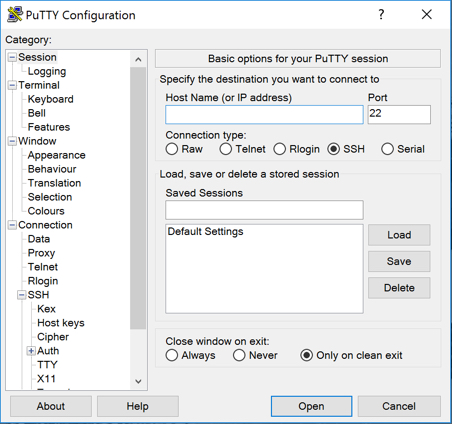
Open PuTTY and select SSH as the connection type.
In the Host Name field, enter
ec2-user@<public ip>Expand the SSH section on the left, and click on Auth.
Click on Browse to browse for the .PPK key, and click Open when you have selected it.
To launch the SSH session, click Open.