

When connecting using an SFTP client, it's recommended to use key-based authentication with SFTP Gateway. This is more secure than regular password.
Note: If you need to use password-based authentication, refer to this page on how to set that up.
Create a private key
In the process of creating a new user, the user's SSH key is sent via email. Paste the contents of this email (include the lines containing BEGIN and END) into a new file (e.g. call it userPrivateKey.pem)
SFTP via command line (Linux/Mac)
In order to use your private key at the command line, you need to tighten permissions. Run the following command:
chmod 600 userPrivateKey.pem
Log into the SFTP Gateway server as the new user:
sftp -i userPrivateKey.pem <user>@<public ip>
Once connected, you should be able to run SFTP commands:
lsllscdputexit
SFTP using FileZilla
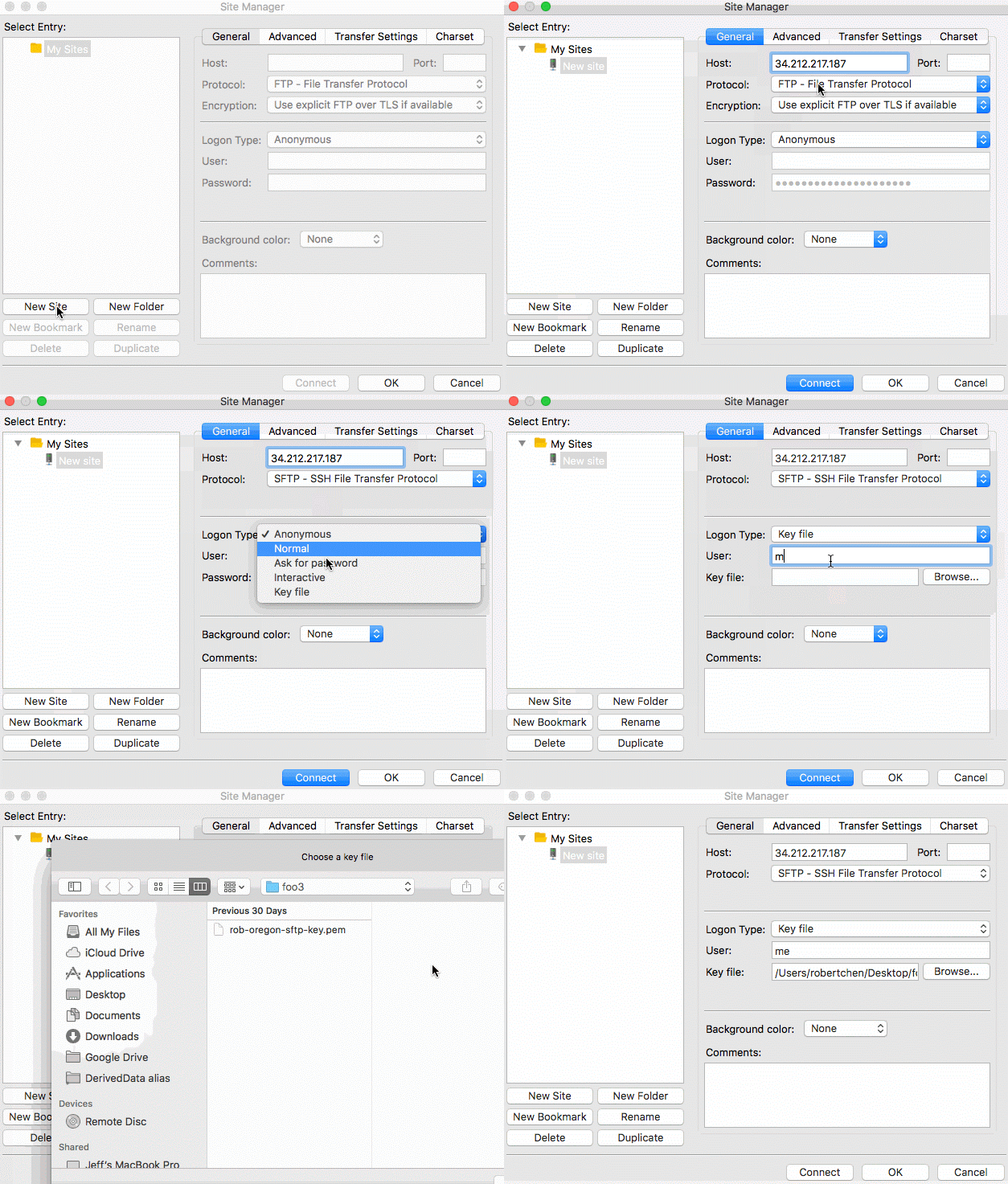
To log into the SFTP Gateway server using Filezilla, follow the GIF below.
Enter the username
Enter the instance's public IP
Select key file for the logon type
Choose the
userPrivateKey.pemfile you created earlier
SFTP using WinSCP (Windows)
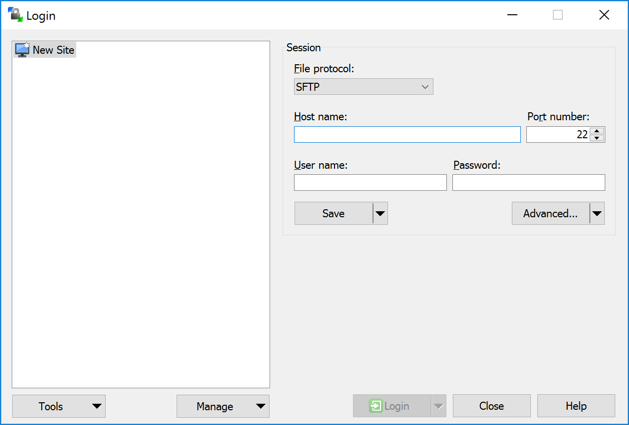
Fill in the following fields:
File protocol: Select
SFTPHost name: Use the instance's public IP
User name: Enter in the client username
Password: Leave this blank. Instead, you will configure the key below.
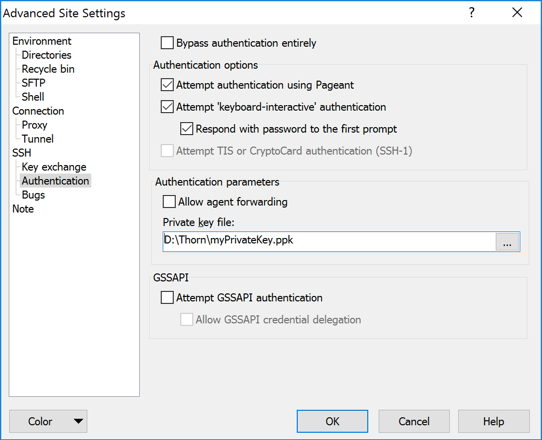
Click Advanced...
Click Authentication.
For the Private key file, select the
userPrivateKey.pemyou created earlier.A dialog will appear asking if you want to convert the
.PEMfile to a.PPK file. Click Ok.Click Save.
Select the newly converted key and click Ok.
Resume Transfer
Prior to SFTP Gateway version 1.003.02, the resume/transfer feature of WinSCP would cause SFTP Gateway to miss files due to a temporary “.filepart” file being created as a placeholder while WinSCP would write to the file. WinSCP would then rename the file causing an error in SFTP Gateway. To fix this we implemented a file exclusion feature to ignore the “.filepart” extension when a file is uploaded. Please see the File Exclusions knowledge base article for more details.
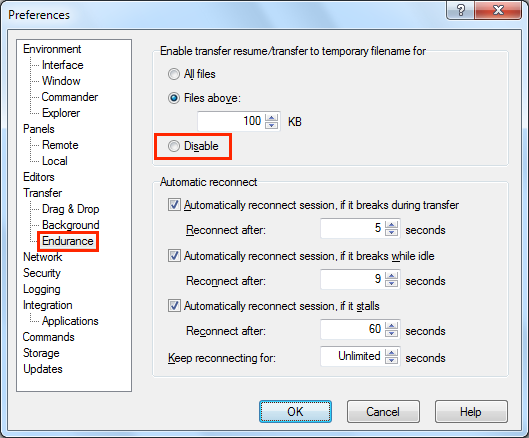
Click Preferences
Open the Endurance section
Find the section at the top where it says:
Enable transfer resume/transfer to temporary filename for.Click Disable
Click OK
Finally, you can connect to the SFTP Gateway server.
Updated 2017-11-10